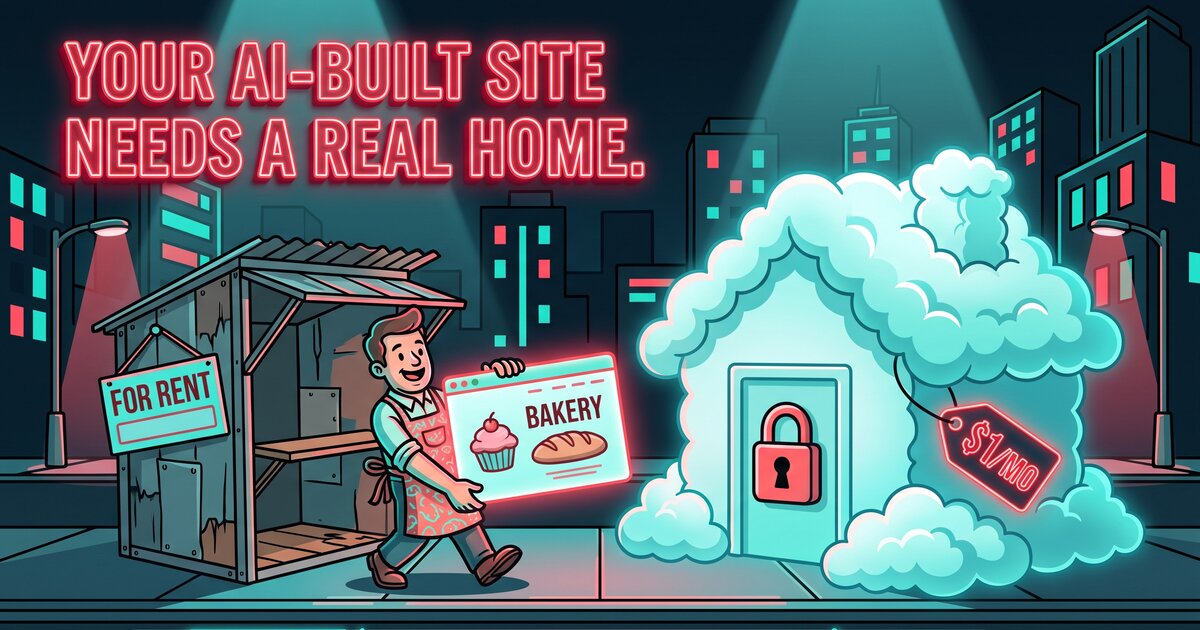
A year ago, getting a website meant hiring someone or wrestling with a page builder. Now you can describe what you want to an AI tool like Lovable, Bolt, v0 or ChatGPT, and a few minutes later you have something that looks good. People call it “vibe coding”, and plenty of business owners are doing it.
The building part has gotten easy. What comes after hasn’t. Your new site lives at an address like my-bakery-4821.lovable.app, the builder wants a monthly plan before it will use your own domain, and you’re not sure what you would lose if you ever left.
This post explains where a site like yours can live instead, what it costs, and what to check before you move it. We also released the setup we use for our own sites, free, so you (or whoever helps you with tech) can do it in an afternoon.
The short version
- Most AI-built websites are just files: pages, styles, pictures and some code that runs in the visitor’s browser. Files don’t need a server.
- Amazon Web Services (AWS) can hold those files and deliver them from data centers around the world, with the padlock (HTTPS) and your own domain.
- For a typical small business site, that costs about a dollar a month.
- A few things the builder did quietly in the background, like contact forms, need a plan before you move. They’re listed below.
- Our free tool sets the whole thing up in one step. You can see a site running on it at static-demo.45squared.com.
Why not just stay on the builder?
For a quick prototype, stay. For the site your business runs on, owning the hosting has real advantages:
- It costs less. Builders often charge a monthly plan just to connect your domain. Hosting the same files yourself is usually pocket change.
- You’re not locked in. If the builder raises prices, changes its terms or shuts down, your site goes with it. Files in an account you own stay where you put them.
- It’s fast. Your pages are copied to locations close to your visitors, so they load quickly whether someone is in Grand Rapids or Chicago.
- You control the details. Moving old page addresses to new ones, security settings, how long browsers keep a copy: all yours to decide.
Where your site actually lives
Here is what sits behind a site hosted this way, in plain terms (and the AWS names, in case anyone asks):
- A locked storage box for your files (Amazon S3). It’s private. Nobody can open it directly.
- A delivery network in front of it (Amazon CloudFront). This is what visitors actually connect to. It keeps copies of your pages in hundreds of locations and is the only thing allowed to read the storage box.
- The padlock (a free certificate from AWS Certificate Manager). It renews itself, so you never get the “your connection is not private” warning because someone forgot.
- Your domain’s address book (Amazon Route 53). It points
yourbusiness.comat the delivery network.
There is no server in that list. Nothing to update, patch or restart, and nothing for an attacker to log into.
What it costs
For a typical small business site:
- Your domain’s address book (Route 53): $0.50 a month.
- Delivery (CloudFront): free up to 1 TB of traffic and 10 million requests (each page, picture or file a visitor loads) a month. A local business site rarely comes close.
- Storage (S3): a few cents a month.
- The padlock: free.
That’s about a dollar a month, plus the domain itself, which you pay your registrar for as usual. Prices are from AWS’s CloudFront and Route 53 pricing pages as of October 2026.
Check these before you move
This is the part most guides skip. When you leave a builder, anything it did on its own computers stops. Five things to check:
- Your contact form. If messages from your form went through the builder, they will stop arriving. You’ll need a form service, or a small piece of code on AWS to receive them. Test it after the move by sending yourself a message.
- Secret keys in the code. AI tools sometimes paste private passwords for services (an OpenAI or Stripe secret key, for example) into the website itself, where every visitor can read them. If that happened, those keys need to come out and be replaced before the site goes anywhere.
- Logins and saved data. Many Lovable and Bolt sites keep accounts and data in a service like Supabase or Firebase. Those keep working after a move, because the visitor’s browser talks to them directly.
- Pages that refresh into an error. Sites built as “apps” handle their own page addresses. A host that doesn’t know that shows an error when someone refreshes
/menu. Our tool has a setting for exactly this. - Your email. Moving your domain’s address book to AWS means copying your email settings across too. Skip that step and your email stops. It’s the most common way a website move goes wrong.
The free tool: one command, the whole setup
Setting all of this up by hand takes a few dozen clicks across four AWS services, and it’s easy to miss one. So we packaged the setup we use for our own sites into a free, open-source tool: terraform-aws-static-site.
It’s written for Terraform, the most widely used tool for describing cloud setups as a short text file instead of clicks. You tell it your domain and where your site’s files are. It builds everything above, uploads your files, and on every update clears the old copies so visitors see the new version within a minute or two.
For whoever handles your tech, this is the whole thing:
module "site" {
  source = "github.com/45squaredLLC/terraform-aws-static-site"

  domain   = "yourbusiness.com"
  site_dir = "./site"     # the folder with your index.html
  spa      = true         # for sites built with Lovable, Bolt or v0

  providers = {
    aws           = aws
    aws.us_east_1 = aws.us_east_1
  }
}
Then two commands, terraform init and terraform apply, and about ten minutes of waiting while AWS spreads the site around the world. The README has the full steps, including how to build a Lovable or Bolt project into files and how to switch over from a site that is already live without any downtime.
A few things it does that hand-built setups usually skip:
- Sends
www.yourbusiness.comtoyourbusiness.com, so Google sees one site instead of two. - Keeps old links working when page addresses change, with proper permanent redirects.
- Shows your own “page not found” page, with the right status for search engines.
- Adds the security headers browsers look for: always-HTTPS, no framing your site inside someone else’s, and more.
- Won’t take over a domain that is already live until you tell it to.
See it running
static-demo.45squared.com is a small site deployed with exactly this tool. Click around: the clean page addresses, a redirect from an old page, the custom “not found” page. There’s no server behind any of it.
Rather not touch any of this?
That’s what we’re here for. 45Squared builds, hosts and looks after websites for small businesses, including ones that started life in an AI builder. Send us the link to your site and we’ll tell you what it needs to live on your own domain properly: the form, the keys, the email, all of it.
Get in touch, or start with a free website check.